(04)Case study — AI · Web App · Web Design
AI Teleprompter
A modern web application and marketing experience for an AI-powered teleprompter tool, enabling business professionals and creators to record confident, line-free video presentations directly from their web browsers.
From a blank script to a confident take — in three steps.
Production-ready web design
Delivered a complete, component-driven web UI architecture optimized for fast developer implementation and responsive performance.
Frictionless web studio UX
Simplified AI video settings into a clean, 3-step workflow: paste script, adjust pace, record.
High-conversion product interface
Designed a polished marketing and recording aesthetic that enhances brand trust and simplifies camera-based video creation.
The problem
Many professionals and content creators struggle when recording video pitches, product demos and presentations. Memorizing long scripts is time-consuming, while traditional teleprompters often lead to awkward, off-camera eye movement, clutter and unpolished delivery.
Who it’s for
Business executives & founders
Recording company updates, pitch decks and investor presentations.
Sales & marketing teams
Delivering personalized product demos, client outreach videos and sales follow-ups.
Content creators & educators
Producing structured online courses, social media videos and tutorials efficiently.
What I designed
Product landing page
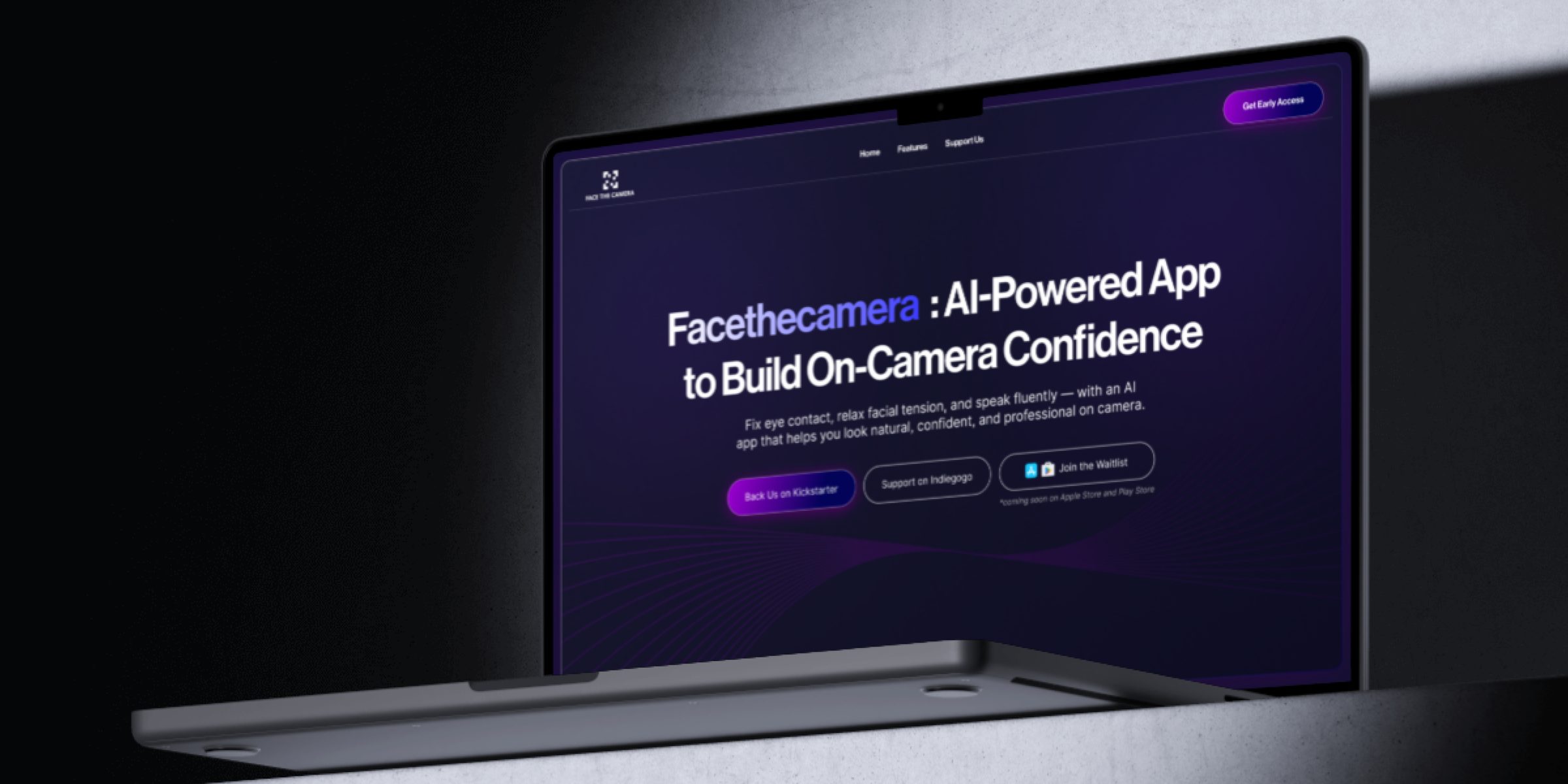
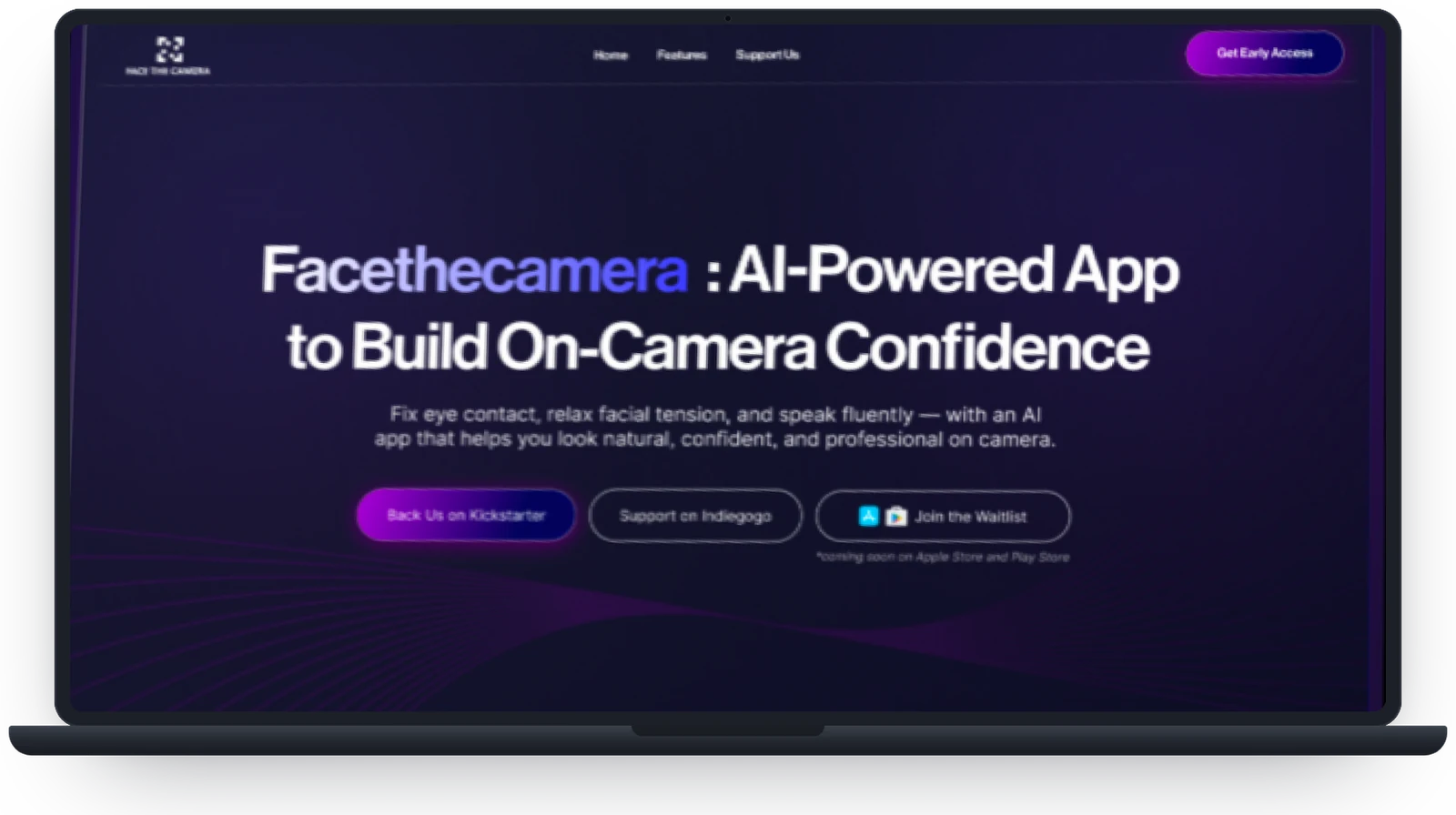
A sleek, modern dark-mode website designed to clearly articulate AI-driven features, build product credibility and drive user adoption.
Smart teleprompter studio
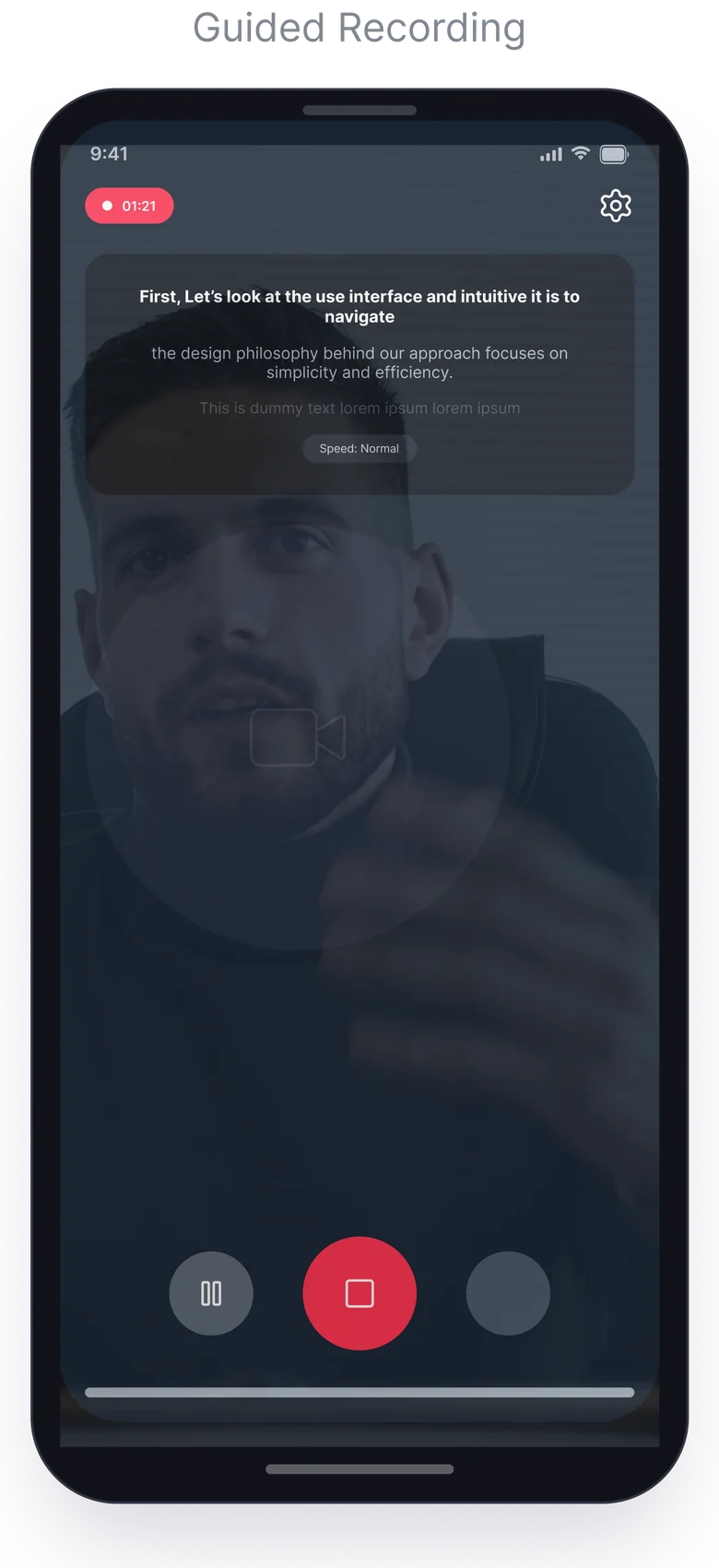
A minimal, distraction-free web app interface featuring live camera preview and script overlay controls.
Eye-level script positioning UI
Adaptive layout logic that anchors text scrolling close to the camera lens to maintain steady, natural eye contact.
Pace & highlight controls
Intuitive settings for custom scrolling speed, font scaling and keypoint highlights for effortless speech rhythm.
How I approached it
01 — Market & competitor analysis
Analyzed existing video recording platforms to identify UI clutter and friction points during live camera sessions.
02 — User flow & wireframing
Structured seamless web onboarding and recording flows, prioritizing rapid script editing and immediate previewing.
03 — High-fidelity web design
Developed a modern, dark-themed visual layout aligned with contemporary AI product aesthetics.
04 — Responsive layouts & handoff
Designed fully responsive layouts for desktop web and mobile browsers, preparing structured assets for developer implementation.
User flow
From a first visit to a saved take: how a creator moves between the landing page, the studio and the AI that polishes each recording.
- 01 · Creator
Discover
An ad, a social post or a shared link.
- 02 · Landing page
Landing page
The value in one line, the AI features explained, a demo.
- 03 · Landing page
Early access
Back the campaign or join the waitlist.
KickstarterIndiegogoWaitlist - 04 · Studio app
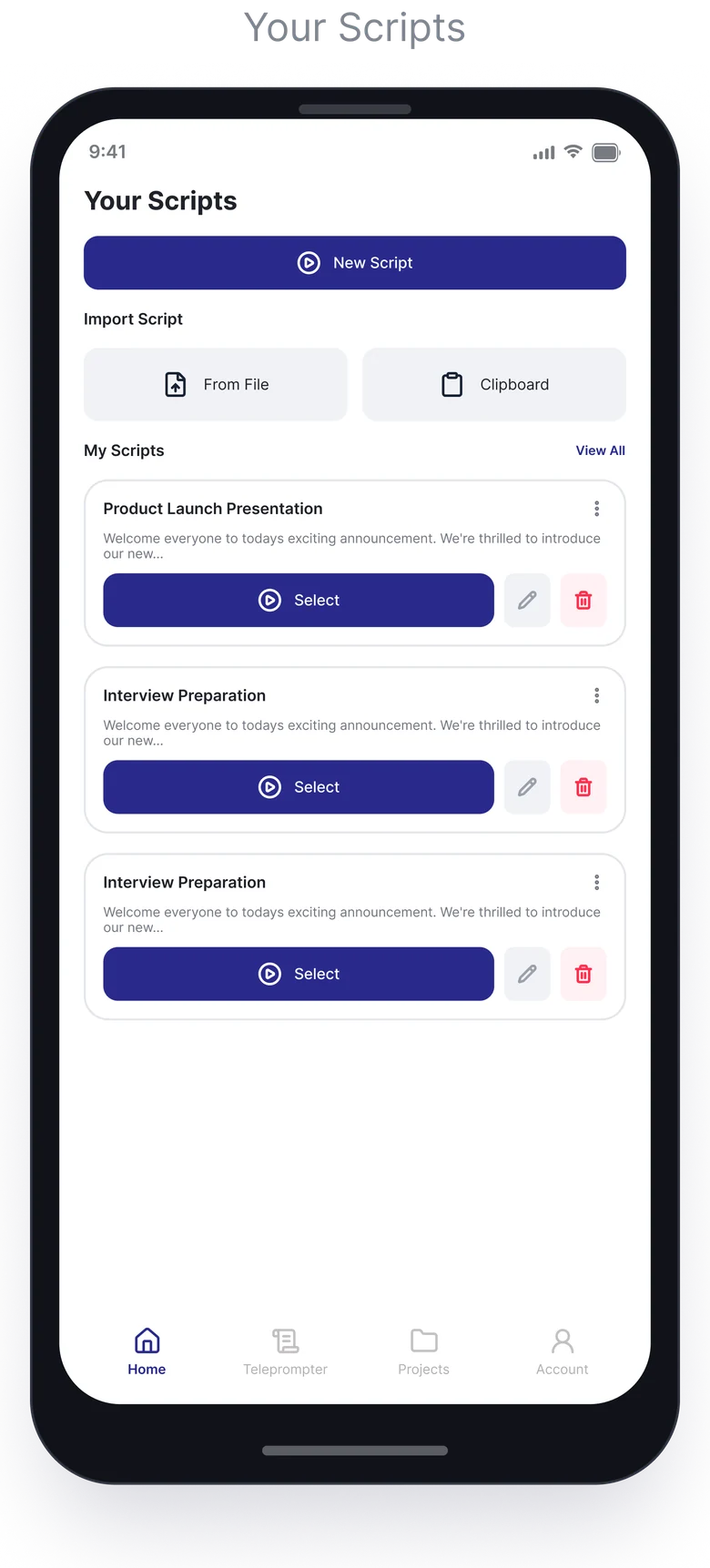
Your Scripts
The library: start a new script or pick one up.
- 05 · Creator
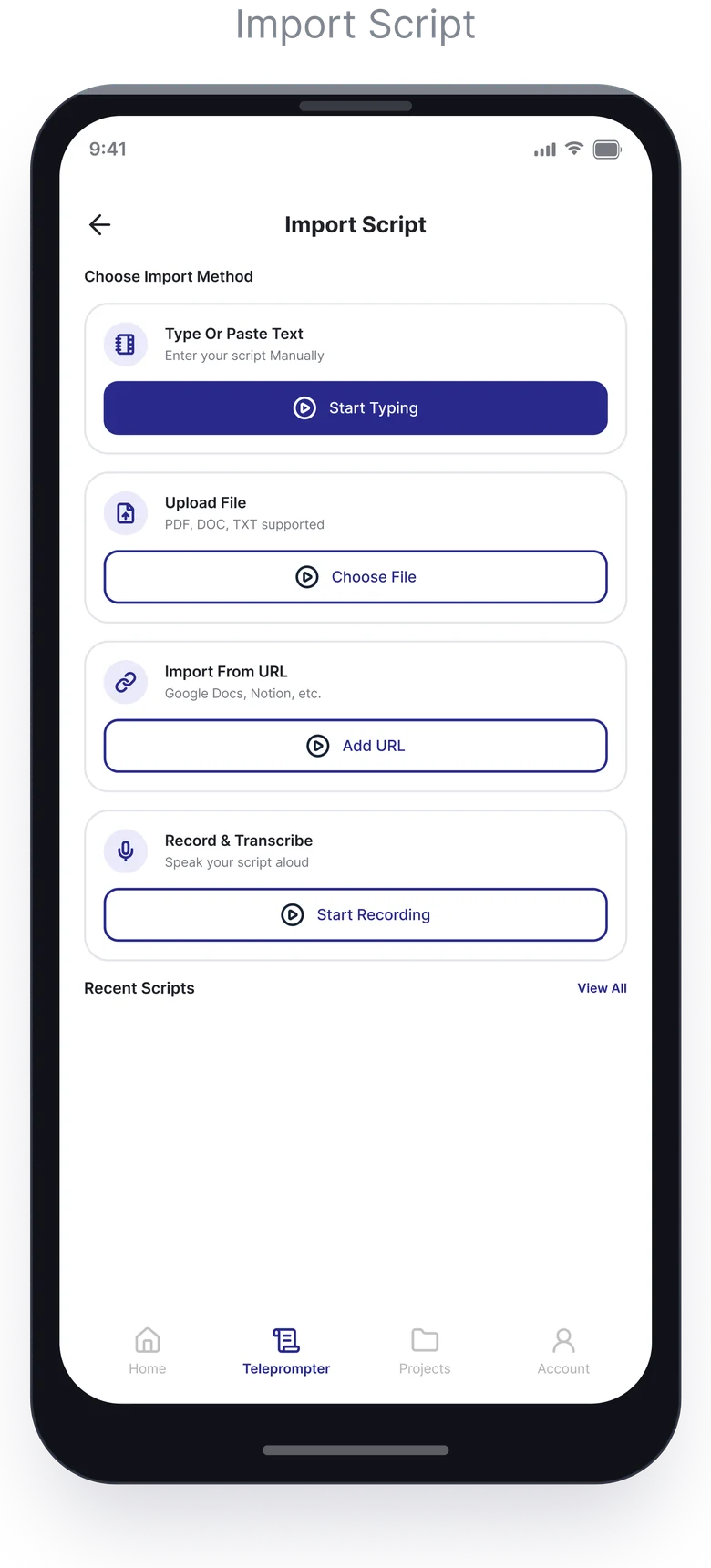
Add a script
Type or paste, upload a file, import from a URL — or just say it.
TypePDF · DOC · TXTURLVoice - 06 · AI engine
Transcribe
Voice notes and files are turned into an editable script.
- 07 · Studio app
Pace & font
Scroll speed, font size and keypoint highlights.
- 08 · Studio app
Record
Guided recording with the script anchored next to the lens.
- 09 · AI engine
AI enhance
Every take is polished before review.
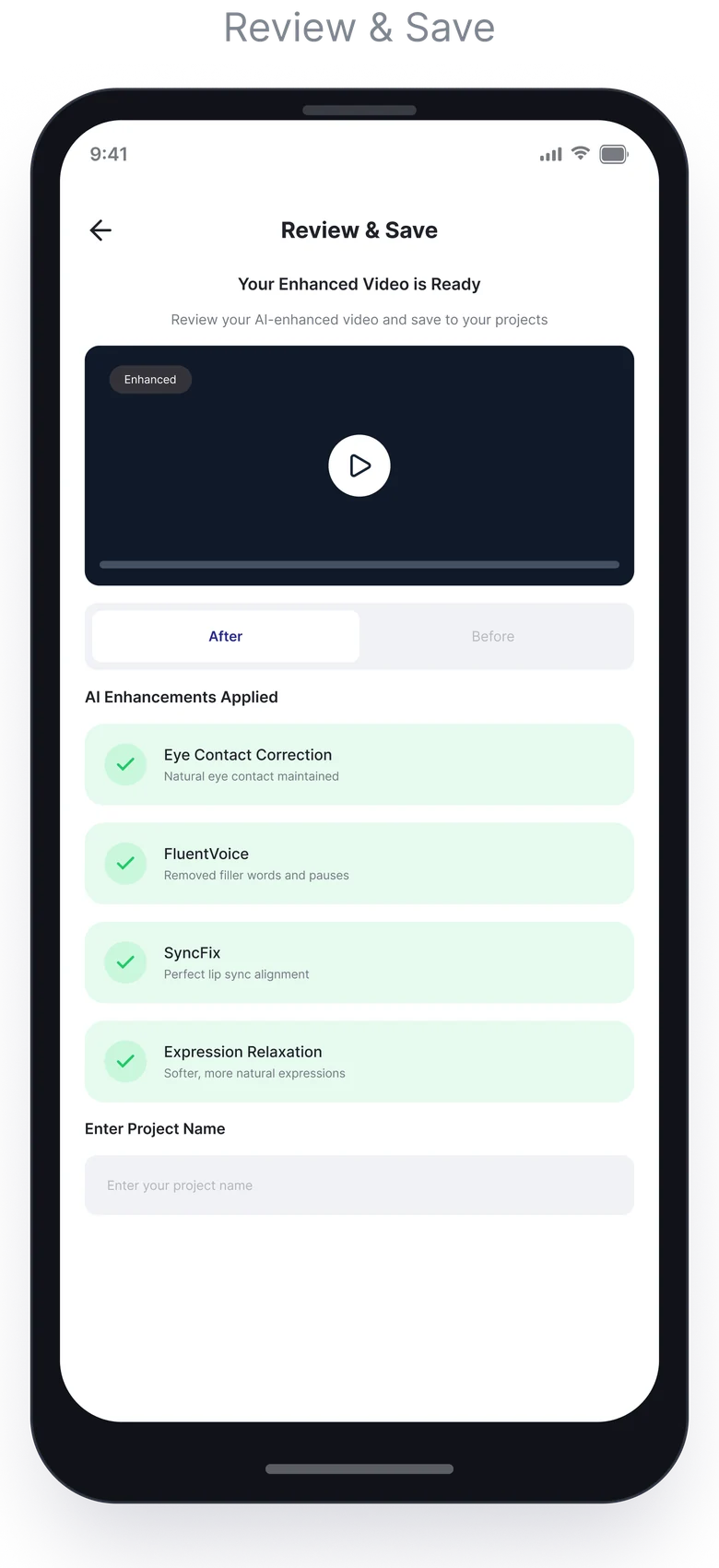
Eye contactFluentVoiceSyncFixRelaxed expression - 10 · Studio app
Review
Before / after, side by side.
- 11 · Creator
Keep the take?
If not, one tap back to recording.
Yes → saveNo → retake - 12 · Creator
Save & share
Name the project and share a link.
- 13 · Studio app
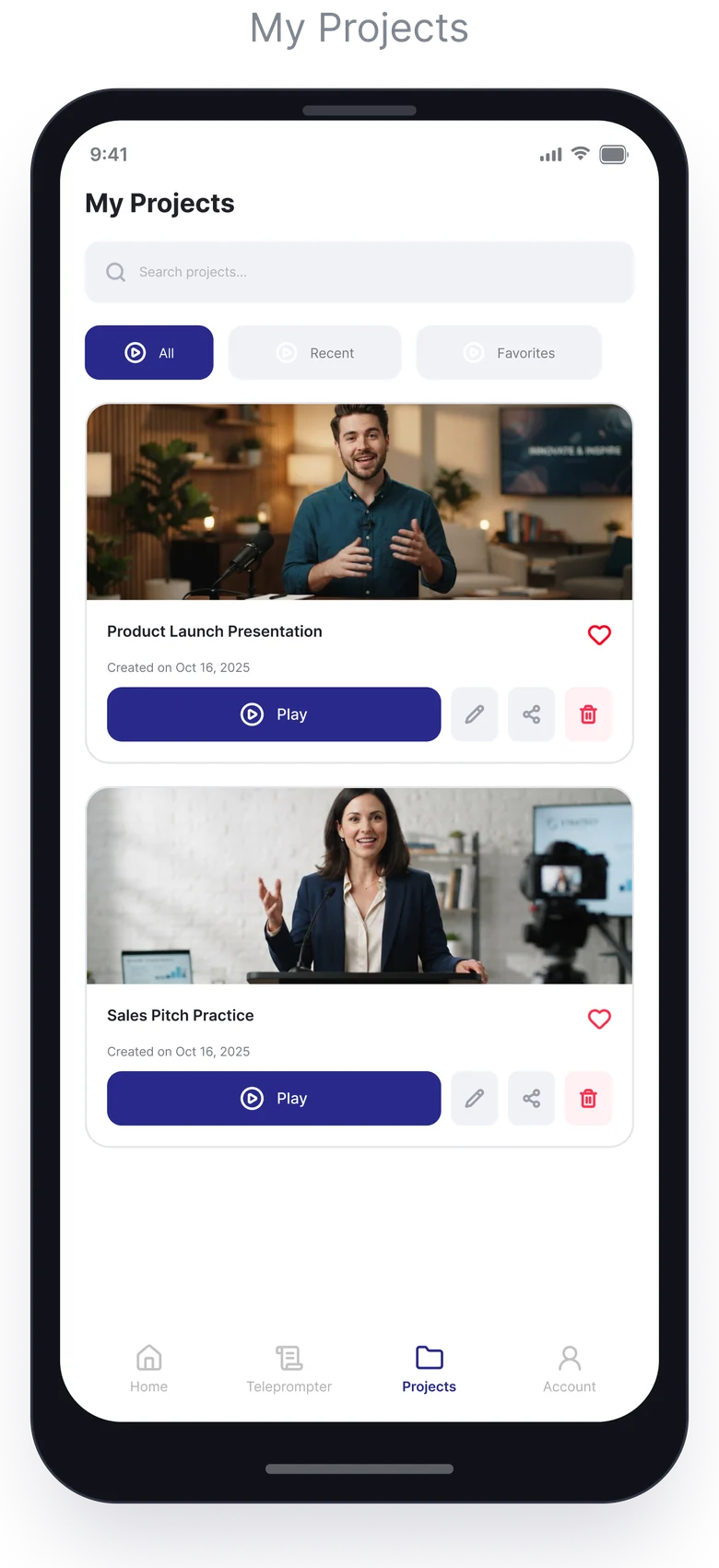
My Projects
Play, favourite, edit or share any take.
Flowchart
The logic behind one recording session — what the studio checks before the camera rolls, and what happens when a step needs a second try.
- 01 · Studio
New take
Opened from a script or the teleprompter tab.
- 02 · Studio
Script ready?
If not, import one first.
TypePDF · DOC · TXTURLRecord & transcribe - 03 · Studio
Camera & mic allowed?
If not, a short prompt explains why access is needed.
- 04 · Studio
Countdown
3 · 2 · 1 — time to look at the lens.
- 05 · Studio
Scroll script
At the chosen pace, anchored at eye level next to the camera.
- 06 · Studio
Stopped?
Until then the script keeps rolling — pause and resume any time.
- 07 · AI engine
AI enhance
Eye contact, voice and lip sync are cleaned up.
Eye contactFluentVoiceSyncFixRelaxed expression - 08 · AI engine
Enhanced?
If processing fails, the original is kept and can be retried later.
- 09 · Studio
Review
Compare before and after.
- 10 · Studio
Save project
Named and stored in My Projects.
Screens
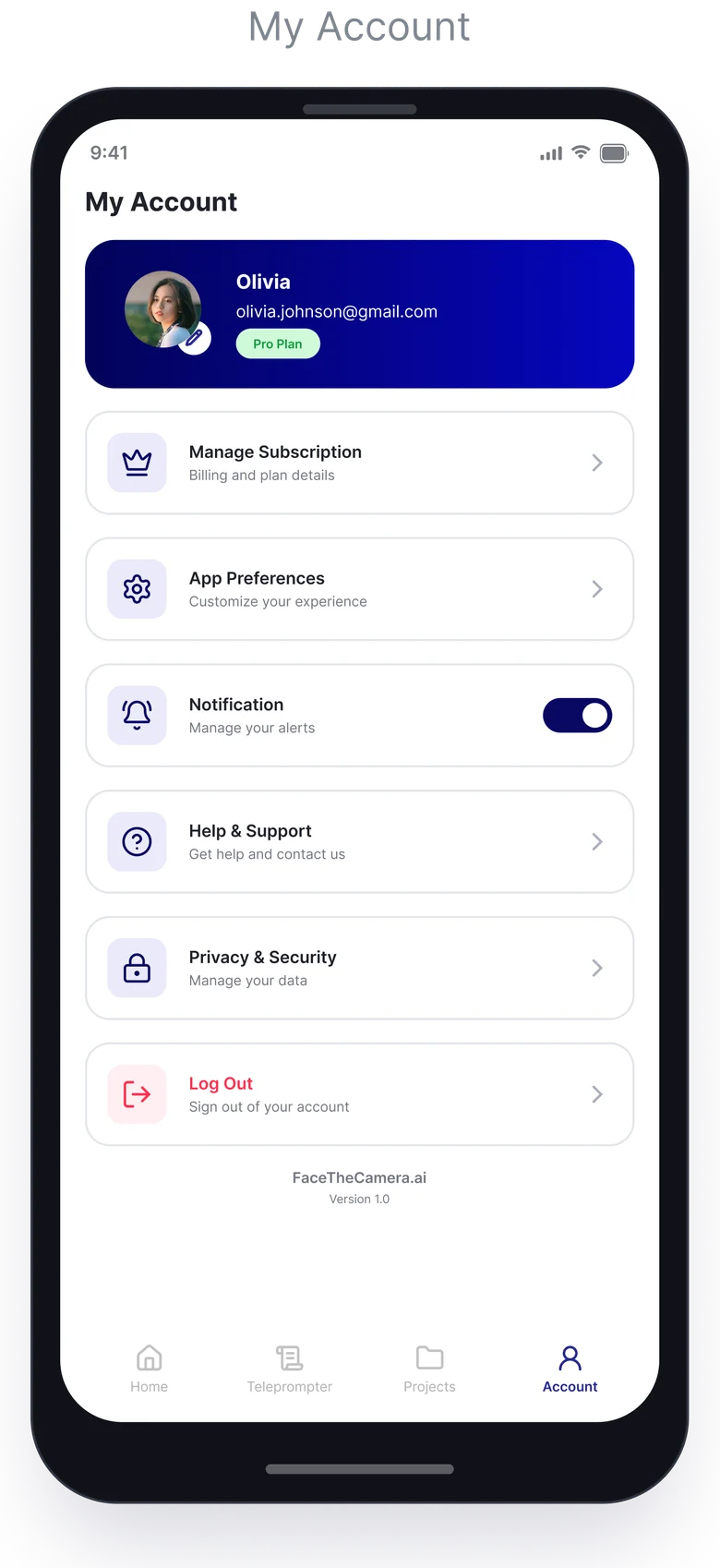
A showcase of core web interfaces including the Product Landing Page, Script Editor Studio, Camera Overlay Workspace and AI Feature Explainer Components.
Interactive prototype
The clickable Figma prototype of the app — from the script library to a saved, enhanced take.
Tap through the real flow.
The clickable prototype, straight from Figma. It loads here only when you ask for it.